Why Screen Recording Captures the Wrong Monitor (and Our Fix)
On a two-monitor setup, GeekBye recorded and screenshotted the primary display no matter which screen you were working on. The fix was one small function — but the first version of it was wrong, and code review caught why.
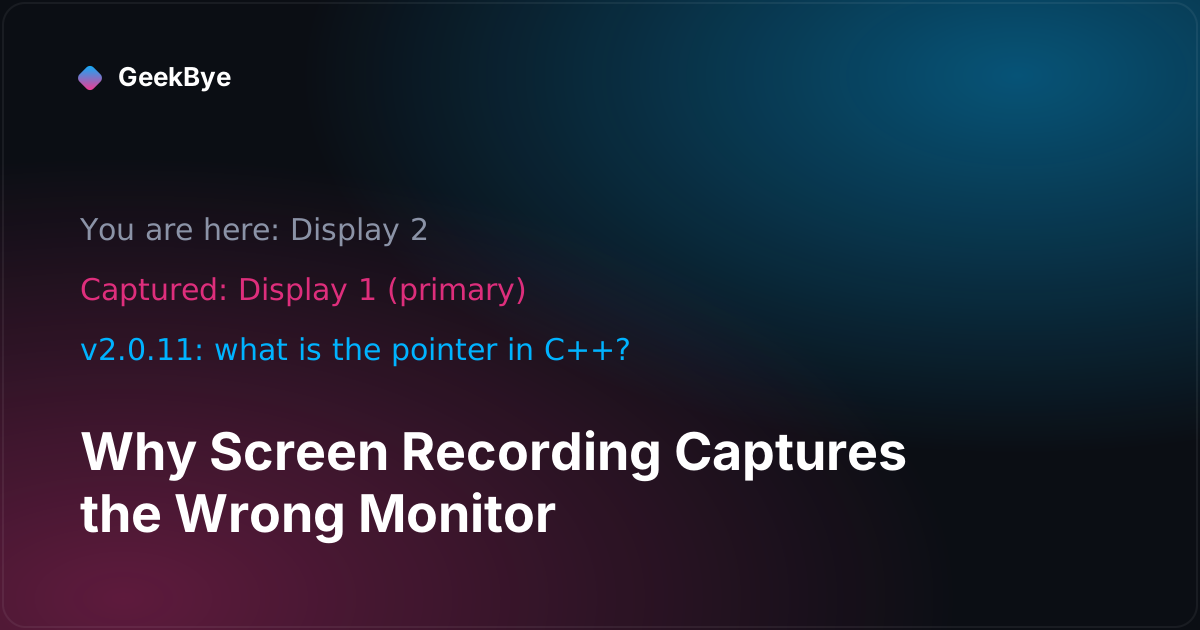
Here's a bug that only exists if you own two monitors — which is why it lived quietly for a while. You work on your side display, start a GeekBye recording, and it records your primary monitor. The one with the menu bar. The one you weren't looking at.
Same defect, quieter and worse, hit the screenshots GeekBye sends to the AI for context: press the screenshot shortcut on your second monitor, and the AI gets a picture of your first one. There's no visual tell — the assistant just answers about the wrong screen and you're left wondering why it's confused. GeekBye v2.0.10 fixed both.
Two pipelines, one lazy default
Screen capture on the desktop is two separate code paths, and both had independently chosen the primary display:
- Video recording enumerated the available screen sources and took the first one —
sources[0]. On macOS that's effectively always the main display. No picker, no logic about where you actually were. The comment in our own code literally said "auto-select first screen source." - Screenshots used the macOS
screencapturecommand with the-mflag. That flag has exactly one meaning: main display only. Hardcoded.
Neither path ever asked the question that matters: which screen is the user on?
One thing that was never broken, worth clearing up because people assume it is: switching between macOS Spaces on the same monitor always worked. Capture happens at the display level — it grabs whatever Space is visible on the chosen display. The bug was never about Spaces. It was always about picking the wrong physical display.
The fix that looked obvious — and was wrong
The correct signal seems easy: capture the display the user is on. Our first implementation anchored on GeekBye's overlay window — capture whichever display the overlay lives on.
Code review killed it, correctly. GeekBye's overlay is created as a full-workarea window on the primary display, at position (0,0). It only moves to another monitor if you physically drag its pill there — and the keyboard shortcuts that nudge it around clamp to the primary display's dimensions, so they cannot move it to a second monitor at all. Anchoring capture on the overlay meant: for every user who didn't happen to drag the overlay onto their working screen, the "fix" resolved right back to the primary display. It would have fixed almost nobody — while looking, in a quick test on a single-monitor dev machine, like it worked.
The right anchor is the cursor. Wherever your mouse is, that's the display you're working on — and it's correct for every way a capture starts: a keyboard shortcut fires where you're pointing, and clicking the Record button puts your cursor on that display by definition. The final fix is a two-line function: the display nearest the cursor. Video matches its capture source to that display's id; screenshots pass that display's bounds to screencapture -R (a specific rectangle) instead of the -m main-display flag.
We chose -R (an explicit rectangle in global screen coordinates) over -D (a display index) deliberately: the OS display index has no guaranteed correspondence to the framework's display ordering, so an index would be a second guessing game. A rectangle from the actual display bounds is unambiguous — and we verified the flag's behavior, including negative coordinates for displays positioned left of the primary, on a real multi-monitor rig before shipping.
Why this one is a good teaching bug
- "Capture the screen" hides a decision. On a single display there's no decision, so the decision never gets designed — it gets defaulted. Multi-monitor is where every implicit default surfaces.
- Silent-wrong is worse than visibly-wrong. The video bug annoyed people. The screenshot bug misled the AI, invisibly. When you build features that feed context to a model, a wrong input produces a confidently wrong output with no error anywhere. Those are the failures worth hunting hardest.
- A fix that passes on your machine can fail on everyone else's. The overlay-anchored version worked in a single-monitor test. The whole point of the bug is multiple monitors — and the reviewer reasoned about the window's real position instead of trusting the green test. Review is not a rubber stamp on working code; it's a second model of why the code works.
GeekBye v2.0.10 ships the cursor-based fix for both recording and screenshots. If you run multiple displays, capture now follows you.
For the neighboring releases in this series, see why your AI notetaker stops recording mid-meeting (v2.0.9) and why AI transcription mishears technical terms (v2.0.11). For another bug that only surfaced in one specific environment, why your Mac app forgets microphone access every launch (v2.0.6). For how the overlay behaves during calls, see how to stay invisible during screen sharing.