How to Get Instant AI Help with One Keyboard Shortcut
Press Cmd+Enter and get AI assistance for anything on your screen. No copy-pasting, no explaining - GeekBye sees what you see and helps immediately.

How to Get Instant AI Help with One Keyboard Shortcut
You're stuck on a problem. The error message makes no sense. The documentation isn't helping.
You could copy the code, open ChatGPT, paste it, explain what you're trying to do, describe the context, wait for a response...
Or you could press Cmd+Enter.
That's it. One shortcut. AI help appears instantly.
The Old Way vs The New Way
The old way:
- Select and copy your code
- Open browser, navigate to ChatGPT
- Paste the code
- Type out what you're trying to do
- Explain the context
- Wait for response
- Copy solution back
The new way:
- Press Cmd+Enter (Ctrl+Enter on Windows)
- Done.
GeekBye already sees your screen. It already knows the context. The AI response starts streaming immediately.
How Ask Works
Here's what happens when you press the shortcut:
- Instant screen capture - GeekBye takes a screenshot of your active window
- Local OCR extraction - Text is extracted directly on your device using Apple Vision (macOS) or Windows OCR
- Context sent to AI - The extracted text goes to the AI with your question
- Real-time response - The answer streams back as it's generated
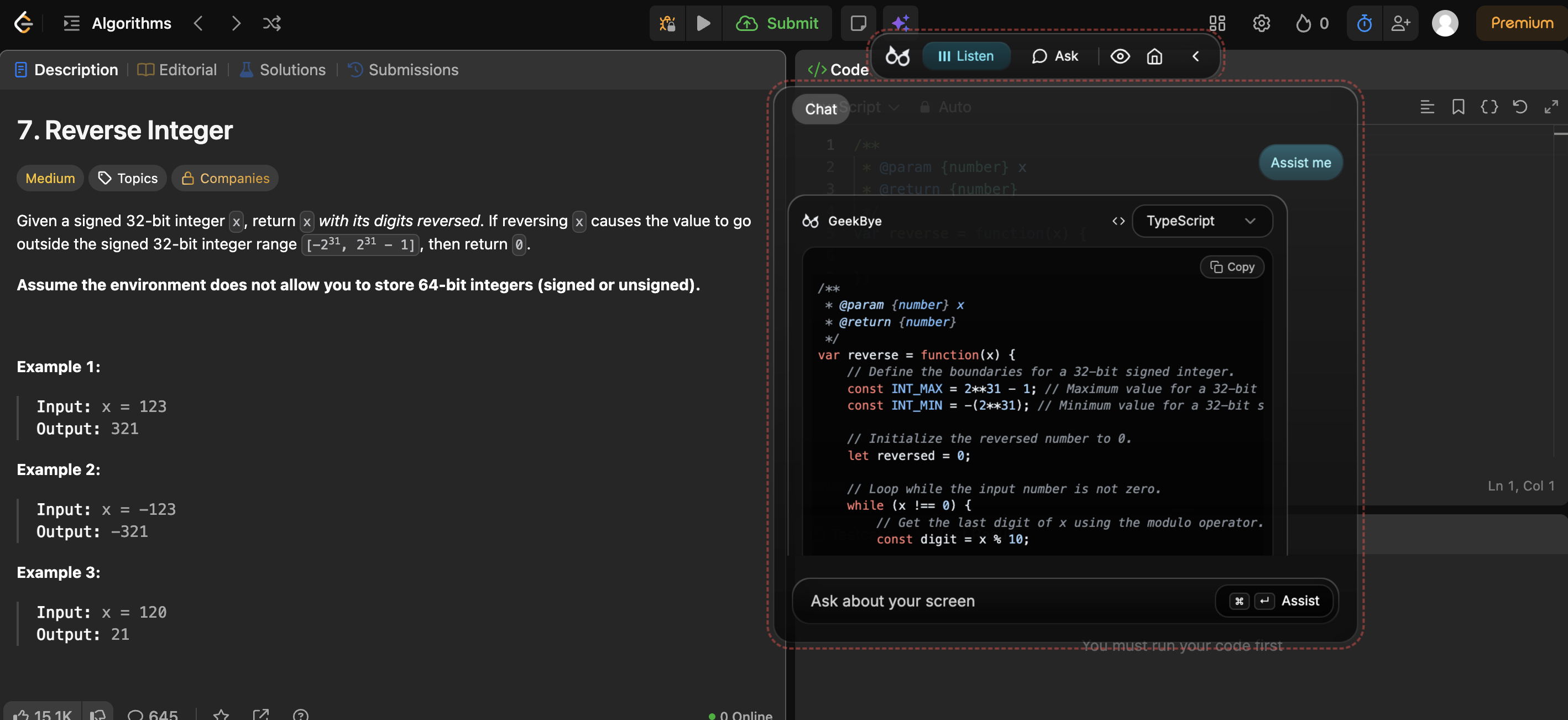
No raw screenshots leave your computer. Only the extracted text is sent to the AI.
The result: You get contextual help without explaining anything. The AI sees exactly what you see.
Smart Actions
Just pressing the shortcut gives you general assistance. But you can be more specific:
- Just press shortcut → "Assist" mode - context-aware help based on your screen
- Type "solve" → Direct solution to the problem
- Type "debug" → Find and fix bugs in visible code
- Type "explain" → Clear explanation of what you're looking at
- Type "optimize" → Better approaches or performance improvements
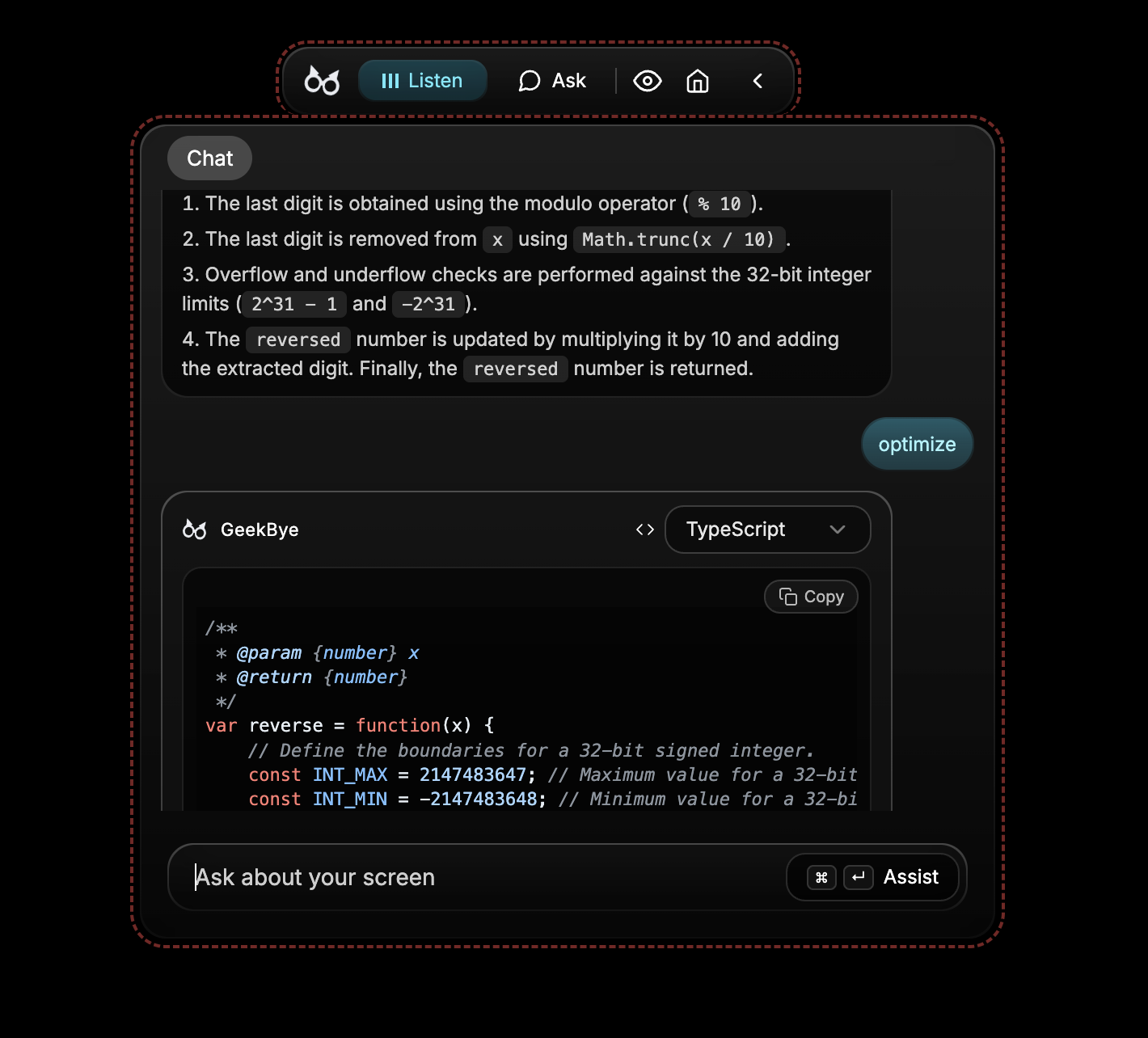
Each action type changes how the AI approaches your question. Use "debug" when something's broken. Use "explain" when you're learning. Use "solve" when you need the answer fast.
Works Everywhere
Ask works in any context where you need help:
During coding interviews:
- Technical questions appear on screen
- Press shortcut, get instant guidance
- GeekBye stays invisible during screen sharing
While debugging:
- Error message on screen
- Press shortcut, AI analyzes the stack trace
- Get suggested fixes immediately
Reading documentation:
- Complex API reference visible
- Press shortcut with "explain"
- Get a plain-language breakdown
Studying for certifications:
- Practice question on screen
- Press shortcut, see the solution explained
- Learn from every question
Any screen. Any context. One shortcut.
Conversation Memory
Ask isn't a one-shot tool. It remembers context.
After getting an initial response, you can ask follow-up questions:
- "What if I need to handle errors?"
- "Can you show me a TypeScript version?"
- "Why does this approach work better?"
The AI remembers what you were looking at and what was already discussed. No need to re-explain or take another screenshot.
Build on previous responses. Dig deeper into topics. Have a real conversation about the problem you're solving.
Privacy First
Your data stays yours:
- OCR runs locally - Text extraction happens on your device, not in the cloud
- No raw screenshots sent - Only extracted text goes to the AI
- Conversation history is local - Stored in your device's database
- Delete anytime - Full control over your data
This isn't just a feature. It's the foundation of how Ask is built.
Stop Context-Switching
Every time you copy code to a chat window, you lose focus. Every time you type out context, you waste mental energy.
With Ask:
- Stay in your flow - Help appears right where you are
- No context switching - AI comes to you, not the other way around
- Instant understanding - AI sees what you see, immediately
The best tools don't interrupt your work. They enhance it.
Ready to get AI help with one keystroke?
Questions about the Ask feature? Get in touch.
Related: the engineering story behind the screenshot queue and the OCR race — why fast users briefly outran the Ask feature's screen reading, and how we fixed it.