
Troubleshooting
Resolve common installation, permissions, audio, transcript, shortcut, and update issues before contacting support.
Screenshots and demos may show an earlier version. Follow the written steps and your current app settings.
Start with the checks below, then include your operating system and GeekBye version when you report an issue.
Try these quick checks
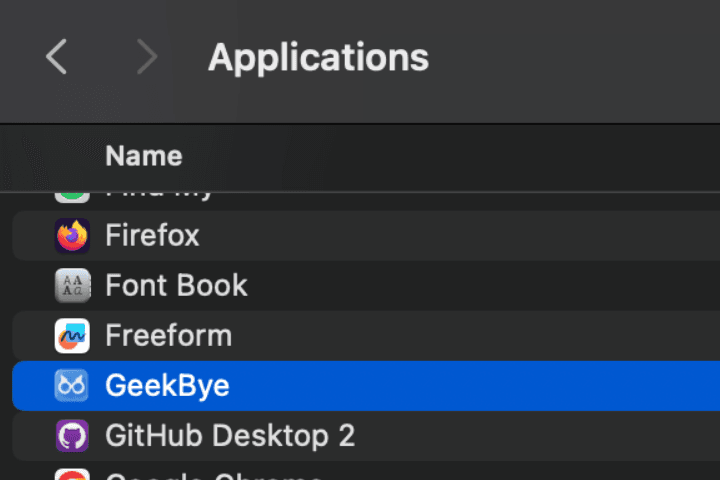
- On macOS, confirm GeekBye is in Applications.
- Confirm the required microphone and Screen Recording permissions for your platform.
- Check the selected microphone and system-audio sharing when applicable.
- Try another shortcut preset if another app owns the combination.
- Restart GeekBye and check for an available update.
Common issues
GeekBye will not open after installation.
On macOS, make sure the app was moved to Applications before opening it. On Windows, rerun the installer if installation was interrupted.
I cannot capture screen context or hear audio.
Review the platform permissions and selected audio devices. Windows live sessions also need system-audio sharing when that audio is required.
The transcript disconnected.
Check your network connection, then stop and restart the session if the transcript does not reconnect.
A shortcut does not work.
Check for an app conflict and switch to the Shift or Alt shortcut preset in Settings.
I still need help.
Use Report Issue or contact support with the operating system, GeekBye version, and steps that reproduce the problem.