Hide Private Notes During Screen Sharing: Zoom, Meet and Teams
Check what others can see on Zoom, Google Meet, and Teams. Follow a recipient-view test for private notes and overlays, with capture limitations explained.

Keep private notes off a shared screen by sharing only the window or browser tab your audience needs. If you use an overlay such as GeekBye, enable its visibility protection and test the result from another device before the meeting.
First, check what the other person actually sees
- Open a test document with no personal information and launch GeekBye.
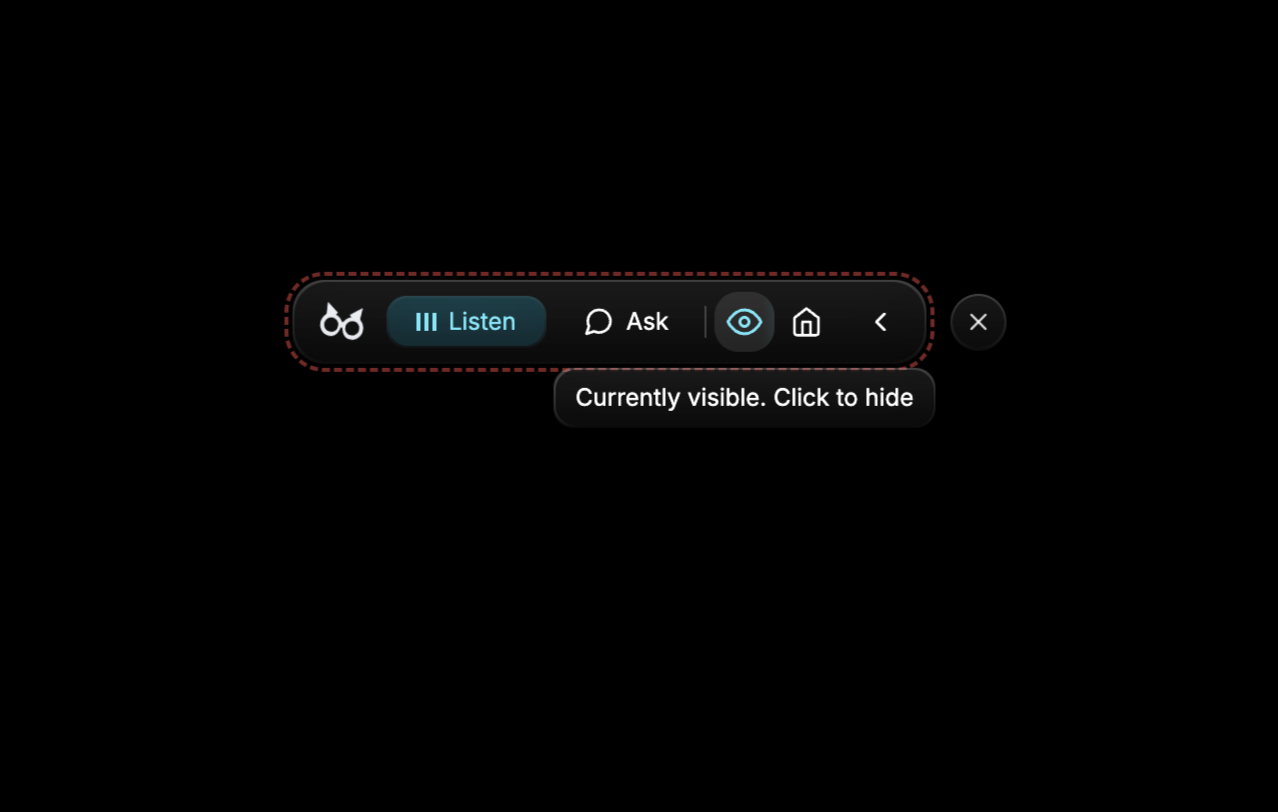
- Enable protection using the eye icon. Check the visibility state before sharing.
- Join a private test meeting from a second device, with its microphone muted to avoid feedback.
- Share the same window, tab, or entire screen you expect to use later.
- Look at the receiving device, switch between your test document and the overlay, and open any panels you intend to use.
- If recording matters, make a short recording and play it back separately. A successful live-share test does not establish the recording result.
- If private content appears, stop sharing. Share a narrower window or tab, close the overlay, and retest.
Zoom: test window sharing and entire-screen sharing separately
Zoom's own capture settings decide the result here: GeekBye's protection holds on Zoom 6.1.6 or earlier, or with Advanced capture with window filtering turned on. Start a private Zoom meeting and join from your second device. Select your test document in the sharing picker and inspect the receiving screen. If your workflow requires sharing the whole desktop, repeat the test with that mode. Do not assume a result from window sharing applies to an entire-screen share.
Watch the Zoom recording in the existing demo collection, then repeat the check with your own versions.
Google Meet: distinguish a tab, a window, and an entire screen
Open a private Meet call in the browser you intend to use. Choose the tab or window containing your test document and inspect it on the receiving device. Repeat with an entire-screen share only if you need that mode. Browser updates and a change of capture mode are reasons to retest.
Microsoft Teams: inspect the receiving view before presenting
Join a test Teams meeting on a second device. Share the test window, open the overlay, and verify what arrives. If you use the desktop app and browser interchangeably, test both. Check a recording separately when that is part of your workflow.
What the demos establish, and what they do not
Our meeting-platform demos show GeekBye in individual recorded sessions. They do not supply a complete OS/app-version compatibility matrix. This guide was revised on September 14, 2026; that is an editorial date, not a claim that every combination was tested that day.
Keep a record when testing your own setup:
| Record | Why it matters |
|---|---|
| OS version and GeekBye version | Updates can change capture behavior |
| Meeting app or browser version | Different clients may use different capture paths |
| Tab, window, or entire screen | These are separate test cases |
| Recipient-view result | Shows what the other device received |
| Recording result, if used | Recordings need their own check |
| Test date | Makes later regressions traceable |
Why content protection has limits
Window protection tells supported capture paths to exclude a window. It cannot promise that every recording tool will honor that request.
For example, Electron documents that newer macOS apps using ScreenCaptureKit may still capture windows protected through its API. That is a limitation of the documented mechanism, not a test result for every GeekBye version. On Windows, the same documentation distinguishes exclusion on Windows 10 version 2004 and later from the black-window behavior on older versions.
Protection also does not hide a physical display from a camera, remove software from an administrator's device inventory, or establish compliance with an interview or workplace policy. Confirm which tools are permitted for the session.
Can I hide another assistant, such as Parakeet AI or Cluely?
GeekBye's visibility setting does not configure another application's windows. Use that product's own controls, check its current documentation, and repeat the recipient-view test. A demo of one assistant does not prove that another is hidden.
For pricing and workflow differences, see Cluely vs Parakeet AI and the Cluely alternatives comparison.
Try it on a private call first
Use the checklist before sharing sensitive material and repeat it after an OS or meeting-app update. For GeekBye's published demonstrations and product explanation, visit undetectability.
If a configuration behaves differently, contact support with the versions, sharing mode, and a test recording that contains no personal information.