Why Your Screen Recording Turns Black (It Is Not a Bug)
You hit record, everything on your screen captures fine, and the one video you wanted is a black box. That is protected playback working as designed. Here is what happens between the encrypted stream and your screen recorder, and why one browser setting can change it.
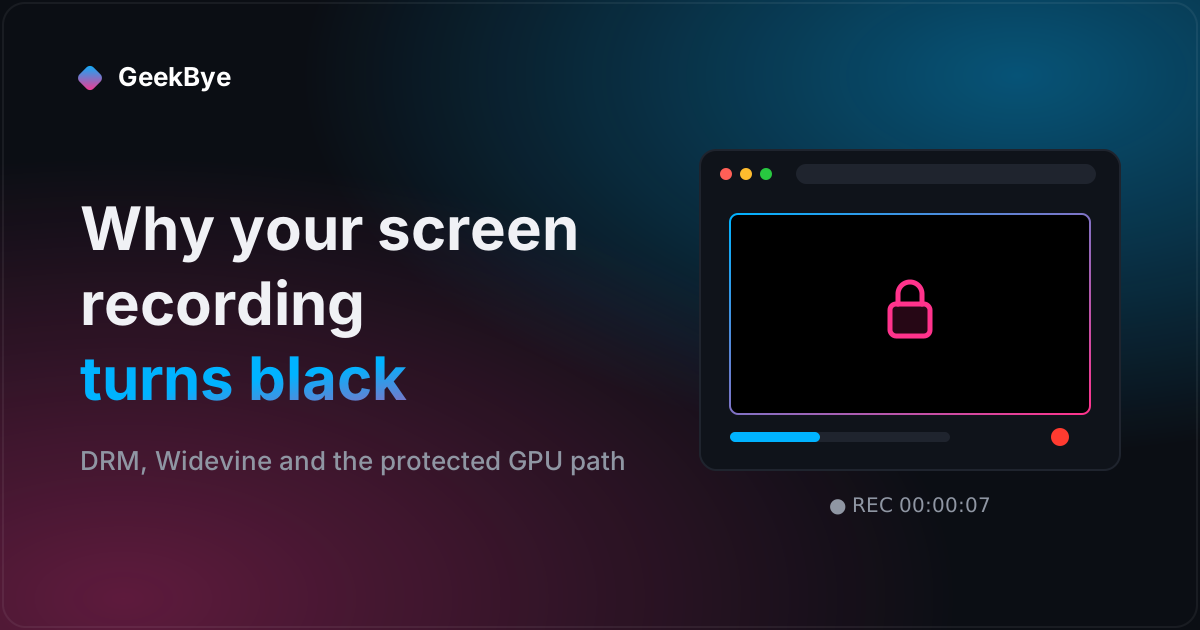
You hit record. The browser tabs record. Your cursor records. The subtitles under the player record. The video itself? A perfect black rectangle.
It feels like your screen recorder is broken, but it is working exactly as it should. What you are looking at is a protection system that has done its job. To see why, it helps to follow a single frame of video from the streaming service's servers to your display.
It is not a bug: the video is protected on purpose
Most paid streaming platforms (movies, series, live sports) license their content from studios. Those licenses require DRM, digital rights management: technology that keeps the video encrypted and controls who can see the decoded picture.
In the browser, DRM is plugged in through a web standard called Encrypted Media Extensions. The page does not decrypt anything itself. It hands the encrypted stream to a Content Decryption Module (CDM) that ships with the browser or the operating system:
- Google Widevine: Chrome, Firefox, Android, and most Chromium browsers
- Microsoft PlayReady: Edge and many Windows apps
- Apple FairPlay: Safari, iOS, and macOS apps
The goal of all three is the same. The decoded picture should reach your eyes, and nothing else on the machine.
What happens behind the scenes
Here is the simplified path of one protected video:
- The video arrives encrypted. The streaming service sends chunks of video that are useless without a key.
- The browser asks for a license. The CDM talks to the service's license server and receives keys, along with rules about how the content may be shown.
- The CDM decrypts the frames. Something like Widevine unlocks the stream inside a protected component.
- The GPU decodes and renders them. With hardware acceleration on, those frames usually go straight to your graphics hardware for decoding and composition.
- The frames stay on a protected path. On setups that support it, the decoded video is kept in protected GPU memory or a hardware overlay and composited directly to the display, where other applications are not allowed to read it.
Your screen recorder works by asking the operating system for copies of what is on screen. The OS can hand over the browser window, the page, and the player controls. It cannot hand over pixels it was never allowed to see. So the recorder fills that area with black.
That is why the symptom is so specific: everything records except the protected video.
How strong that protection is depends on the device
Widevine defines security levels. L1 does decryption and decoding inside hardware-backed protection, and it is what services require for their highest resolutions. L3 is a software implementation. Desktop Chrome commonly runs at a software level, while Edge on Windows can use PlayReady's hardware-backed protection. That is one reason the same title can look sharper in one browser than another, and why the black box behaves differently depending on the browser, the operating system, the GPU and the service.
Why turning off hardware acceleration can change it
With hardware acceleration on, the browser hands video decoding and composition to the GPU, which is exactly where the protected path lives.
Turn acceleration off, and the browser falls back to rendering more of that work itself. The frames can end up composited like the rest of the page, which a screen recorder is allowed to read. That is why the black screen sometimes disappears.
Sometimes is the important word. Depending on the service and the device:
- The video captures normally.
- The service detects the weaker path and drops the resolution.
- The service refuses to play the title at all.
- Nothing changes, because the protection is enforced somewhere else.
Turning acceleration off also costs you: video playback and scrolling get heavier on the CPU, and battery life on laptops takes a hit. If you try it, turn it back on afterwards.
Where the setting lives
- Chrome: Settings → System → Use graphics acceleration when available → turn off → Relaunch
- Edge: Settings → System and performance → Use graphics acceleration when available → turn off → Restart
- Firefox: Settings → General → Performance → uncheck Use recommended performance settings → uncheck Use hardware acceleration when available → restart Firefox
Before you record: only capture what you are allowed to
The black box exists because the rights holder asked for it. Changing how your browser renders video does not change the terms of the service or copyright law where you live. Recording a paid film or series to keep or share is usually against the service's terms and can infringe copyright.
The setting matters in plenty of legitimate situations. You might be filming a bug report for a video player, recording a tutorial about your own course platform, or capturing a meeting app that uses a protected video element. If the content is not yours or licensed to you for that use, the black rectangle is the answer.
If your concern is keeping private notes out of a meeting rather than capturing a video, use the screen-sharing recipient-view checklist. Test the live share and recording separately.
When the black screen is not DRM at all
If your recording is black even on ordinary, unprotected content, the cause is usually something else:
- Hybrid-GPU laptops. On Windows laptops with integrated and dedicated graphics, a recorder running on one GPU can get black frames from a window drawn by the other. Setting the recorder and the browser to the same GPU in Windows graphics settings usually fixes it.
- Missing permission on macOS. If the recorder lacks Screen Recording permission (System Settings → Privacy & Security), macOS gives it the desktop wallpaper or black instead of app windows.
- Window capture versus display capture. Some recorders cannot grab hardware-accelerated windows directly. Switching to full-display capture often works.
- HDR. Capturing an HDR display with a recorder that does not support HDR can produce black or washed-out frames.
The short version
A black video in an otherwise perfect screen recording means the video was decrypted and rendered on a path your recorder is not allowed to read. Encrypted stream, license, decryption module, GPU, protected output. Changing hardware acceleration changes that path, which is why the black box can sometimes vanish, on content you are allowed to capture.
So the next time a recording comes back with a black hole in the middle, you will know it is not broken. It is locked.