How to Change Language in GeekBye: Complete Multilingual Setup Guide
Learn how to configure transcription and output languages in GeekBye. Supports 33 languages including English, Spanish, Chinese, Japanese, German, French, and more for global interview success.

How to Change Language in GeekBye: Complete Multilingual Setup Guide
GeekBye supports 33 languages for both transcription and AI responses, making it the perfect interview assistant for professionals worldwide.
Whether you're interviewing in your native language or preparing for opportunities in international markets, GeekBye adapts to your needs.
Why Language Settings Matter
Getting language settings right is crucial for interview success:
- Accurate Transcription: GeekBye needs to understand what's being said in your interview
- Natural Responses: AI suggestions work best when delivered in your preferred language
- Global Opportunities: Interview confidently in multiple languages
How to Access Language Settings
Changing your language preferences in GeekBye takes just a few clicks.
Step 1: Open Settings
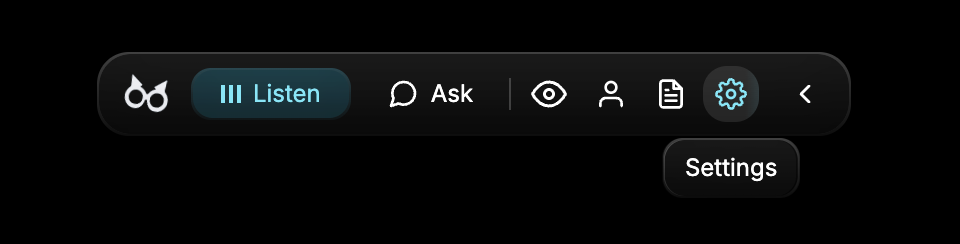
Look at the GeekBye navbar at the top of your screen. You'll see several icons on the right side.
Click the Settings icon (the gear/cog icon) to open the Settings panel.
Step 2: Navigate to Language Options
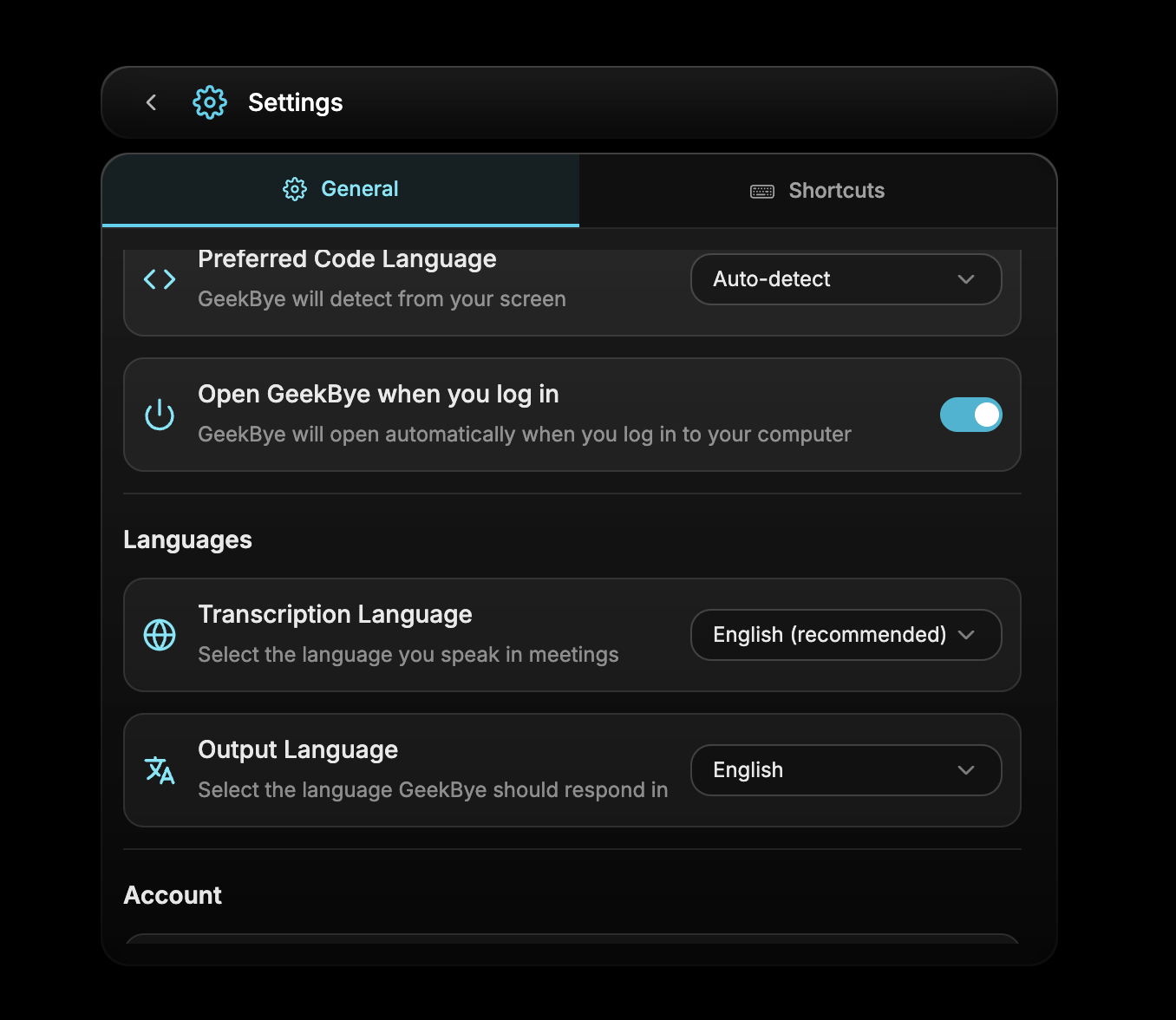
Once in Settings, you'll find the Languages section under the General tab.
Here you'll see two language options:
Understanding Language Options
Transcription Language
What it does: Sets the language GeekBye listens for during your interviews and meetings.
When to change it: Set this to the language being spoken in your interview. If your interviewer speaks Spanish, set transcription to Spanish for accurate real-time transcription.
Pro tip: English is recommended as default since most technical interviews use English terminology, but switch based on your specific interview context.
Output Language
What it does: Controls the language GeekBye uses when providing AI-powered suggestions and responses.
When to change it: Set this to your preferred language for receiving help. Even if the interview is in English, you might want suggestions in your native language for faster comprehension.
Example: Interview conducted in English, but you want AI suggestions displayed in Japanese for quicker processing.
Supported Languages
GeekBye supports 33 languages for both transcription and output:
European Languages: English, Spanish, French, German, Portuguese, Italian, Dutch, Polish, Russian, Ukrainian, Bulgarian, Czech, Slovak, Danish, Norwegian, Swedish, Finnish, Estonian, Lithuanian, Latvian, Romanian, Hungarian, Greek, Catalan
Asian Languages: Chinese, Japanese, Korean, Hindi, Thai, Vietnamese, Indonesian, Malay, Turkish
Best Practices for Multilingual Interviews
Matching Languages
For best results, match your Transcription Language to what's actually being spoken:
- Technical interview in German → Set transcription to German
- Behavioral interview in Japanese → Set transcription to Japanese
- Mixed language interview → Set to the primary language used
Output Language Strategy
Choose your Output Language based on how you process information fastest:
- Native language: Fastest comprehension under pressure
- Interview language: Seamless integration with your responses
- English: Often best for technical terminology
Quick Switching
You can change languages anytime, even during an interview. If your interviewer switches languages mid-conversation, quickly adjust your transcription settings to maintain accuracy.
Common Language Configurations
International Tech Interview (English-based)
- Transcription: English
- Output: English (or your native language)
Local Market Interview
- Transcription: Local language (e.g., Spanish, German, Japanese)
- Output: Same as transcription for consistency
Non-Native English Speaker
- Transcription: English
- Output: Native language for faster AI suggestion comprehension
Get Started with Multilingual Support
GeekBye's multilingual capabilities ensure you can interview confidently anywhere in the world. No more language barriers holding you back from global opportunities.
Need help with language settings? Contact support and we'll get you configured.